An embedded form sits inline on your page — in a sidebar, under a post, at the foot of a landing page — and adds anyone who fills it in straight to a SendX list. One snippet, no plugin, and it works the same on WordPress, Shopify, Wix, Squarespace or a site you built yourself.
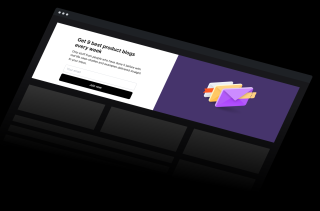
Build the form in SendX, copy the JavaScript snippet, drop it where you want the form to appear. Editing it later happens in SendX — you do not touch the site again.
The form ships as a JavaScript snippet, so it drops into WordPress, Shopify, Wix, Squarespace or custom HTML the same way. There is no plugin to install and no platform-specific version to maintain. Change the form's fields or styling in SendX later and every place you embedded it updates at once.
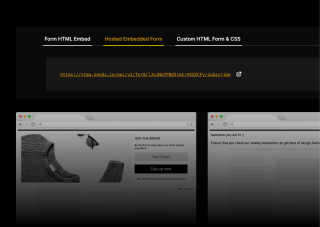
Add any contact attribute you store as a field — first name, company, plan interest, whatever you segment on later. Fonts, colours and layout are yours to set so the form reads as part of the page rather than a bolted-on widget. Turn on a confirmation email when you want double opt-in, and send people to a thank-you page after they submit.
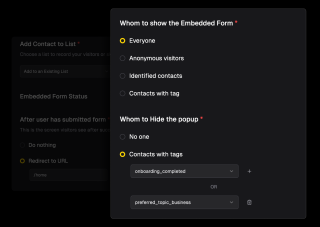
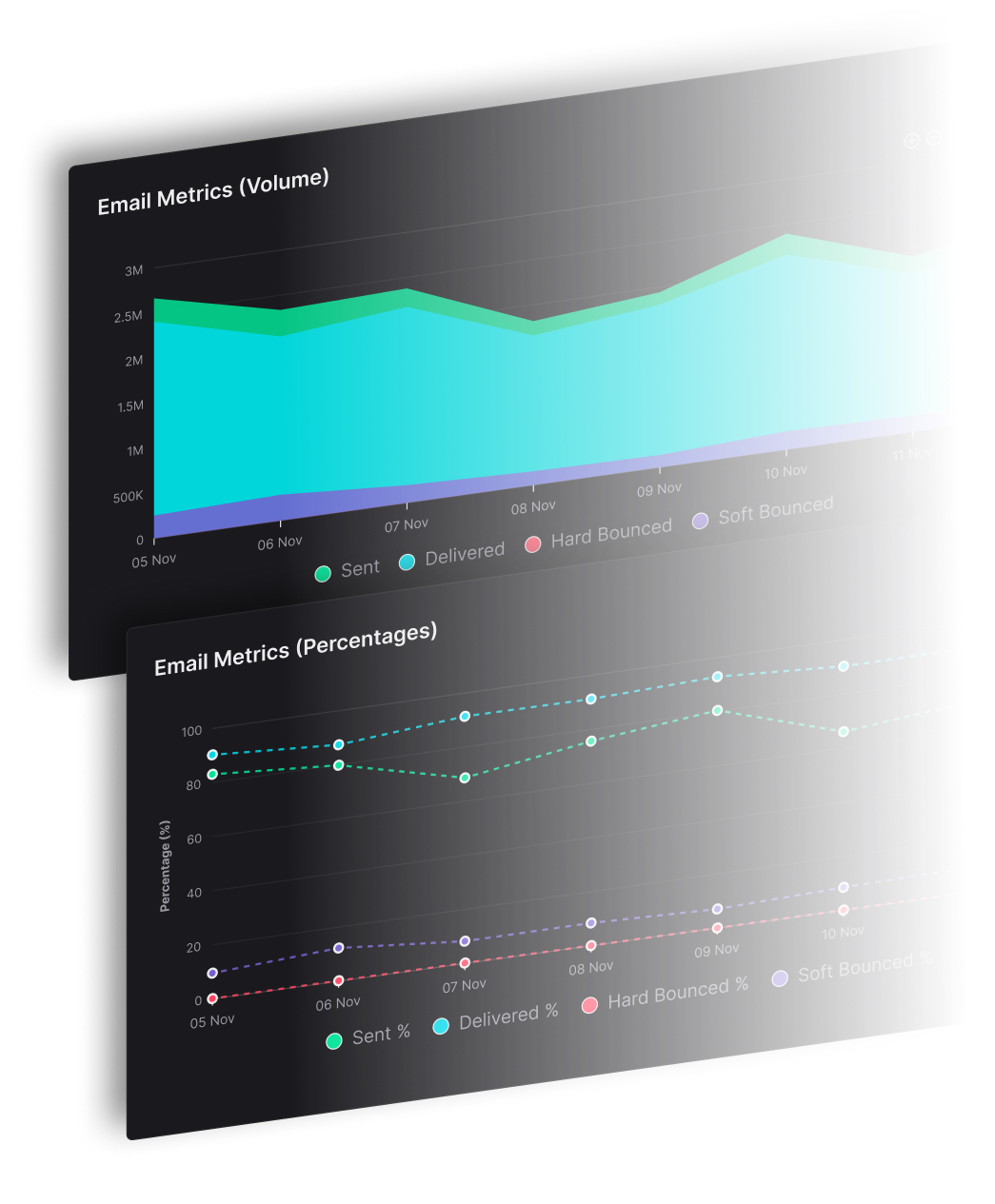
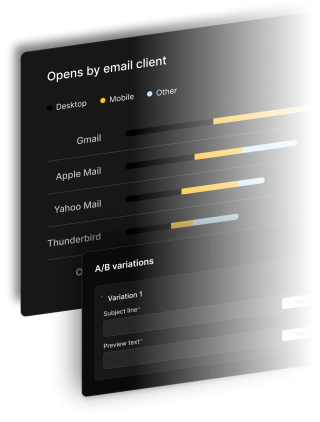
Every form reports its own views, submissions and conversion rate, so a form in the sidebar and a form under the post are measured separately rather than blurred into one list-growth number. That is usually enough to tell you which placement is worth keeping and which is decoration.
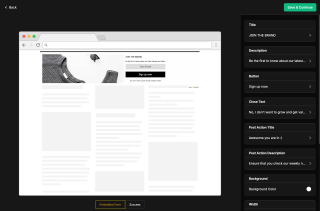
Three steps, and only the middle one involves your website.
Start from the form builder, add the fields you want beyond the email address, and set the fonts, colours and layout so it matches the page it will live on. Pick the list or tag new contacts should land in, and decide whether they get a confirmation email before they are counted as subscribed.
SendX gives you a JavaScript snippet. Paste it into the template, widget or block where the form should appear — a sidebar, the end of a blog post, a section of a landing page. The same snippet works on WordPress, Shopify, Wix, Squarespace and hand-written HTML, and you can use it in more than one place.
Each form reports views, submissions and conversion rate on its own. Run the same form in two placements, or two different forms in one placement, and the numbers tell you which to keep. New contacts flow into the list or tag you chose, so they are ready to segment and send to straight away.
Start from the form builder, add the fields you want beyond the email address, and set the fonts, colours and layout so it matches the page it will live on. Pick the list or tag new contacts should land in, and decide whether they get a confirmation email before they are counted as subscribed.
SendX gives you a JavaScript snippet. Paste it into the template, widget or block where the form should appear — a sidebar, the end of a blog post, a section of a landing page. The same snippet works on WordPress, Shopify, Wix, Squarespace and hand-written HTML, and you can use it in more than one place.
Each form reports views, submissions and conversion rate on its own. Run the same form in two placements, or two different forms in one placement, and the numbers tell you which to keep. New contacts flow into the list or tag you chose, so they are ready to segment and send to straight away.
Everything you need to know about SendX and our services. Last updated June 2026.
Build the form in SendX, then copy the JavaScript snippet it gives you and paste it wherever the form should appear on your site. It works the same on WordPress, Shopify, Wix, Squarespace and custom HTML — there is no plugin to install. After that, any change you make to the form in SendX applies everywhere you embedded it, so you do not have to edit the site again.
An embedded form sits inline in the page as part of the content — a sidebar, the end of a post, a section of a landing page. It is always visible and nobody has to dismiss it. A popup appears over the page on a trigger such as exit intent, scroll depth or a time delay, which gets more attention but interrupts. Most sites run both: an embedded form as the standing ask, and a popup for a specific offer.
Yes. Add any contact attribute you store as a field on the form — first name, company, role, plan interest, or a custom field of your own. Whatever you collect is available to segment on afterwards, so asking one extra question at signup is usually what makes a later campaign targetable rather than generic.
Yes. Every form reports its own views, submissions and conversion rate, so forms are measured individually rather than rolled into one list-growth figure. That is what lets you compare a sidebar form against one at the end of a post and keep the placement that earns its space.
Yes. Turn on the confirmation email and a new subscriber has to click the link in it before they are added as confirmed. Double opt-in costs you some raw signup numbers and buys you a list that engages better and complains less, which matters more the larger you get.
Still have questions? We're here to help.
A/B Split Test is one of five campaign types in SendX. Write two or more subject lines, send them to a slice of your list, and the winner goes out to everyone else automatically. Included on every plan, not held back for a higher tier.
Automatically ramp sending volume to earn a rock‑solid sender reputation—no spreadsheets required.
Write, publish, and track articles without leaving SendX—turn readers into subscribers in minutes.
Filter out security‑scanner noise and see the clicks that actually matter.
Auto‑expire unsent emails so your audience only sees timely, relevant messages.
Give every campaign its own reply‑to address and make sure answers land in the right inbox—every time.
Build it in SendX, paste one snippet, and start collecting subscribers. Free trial, no credit card required.