Drag out the path a contact takes — what starts it, what they get, how long you wait, where they branch. SendX workflows run on 48+ triggers across 15 providers, so the thing that starts a sequence can be a form submission, a Shopify cart left behind, or a failed Stripe charge.
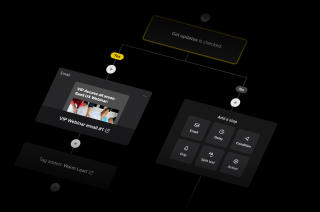
A workflow is built from a small set of blocks. Once you know what the eight do, you can read any automation on the canvas without opening it.
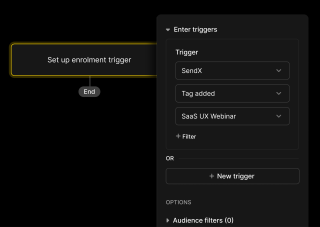
Enrollment can fire from SendX itself — a list subscription, a tag added, a campaign opened or clicked, a form submitted, a page visited, a custom event you define. It can also fire from the tools where money moves — a Shopify cart abandoned or order placed, a WooCommerce order, a Stripe charge succeeded or failed, a PayPal refund, a Meta lead ad, an Intercom user created.
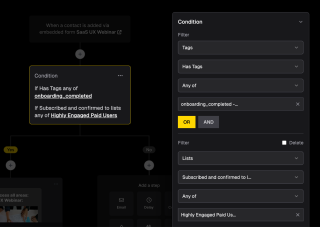
A decision node can split on contact status, list or tag membership, and custom field values — equals, contains, between, empty, begins or ends with. It can also split on whether the contact opened or clicked an earlier email in that same workflow, which is what lets a sequence respond to silence differently from interest. Splits are multiway, so one decision can fan out to several paths rather than just yes and no.
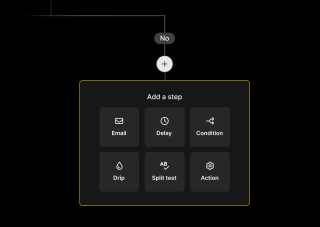
A workflow does more than send. Action nodes subscribe or unsubscribe a contact, add or remove tags, update a custom field, enrol someone in a drip or pull them out of it. They also reach outside SendX — call a webhook, sync to PipeDrive, register someone for a Demio webinar, send an SMS through Twilio, or push a contact into a Meta custom audience.
A workflow moves through four states — draft, active, paused, archived — so nothing goes live until you say so.
Start with the enrollment trigger — the event that puts a contact into the workflow. Then drag out what happens next — an email, a delay of minutes, hours or days, a decision that splits the path, an A/B test between two versions, or an exit for people who should stop here. The canvas shows the whole journey at once, so a sequence you built six months ago is still readable.
Workflows stay in draft while you build. Set one active and it starts enrolling contacts; pause it and enrolment stops without losing the workflow or its history; archive it when it has served its purpose. That matters most on automations tied to money — an abandoned-cart or failed-payment flow is one you want to stop quickly if something reads wrong.
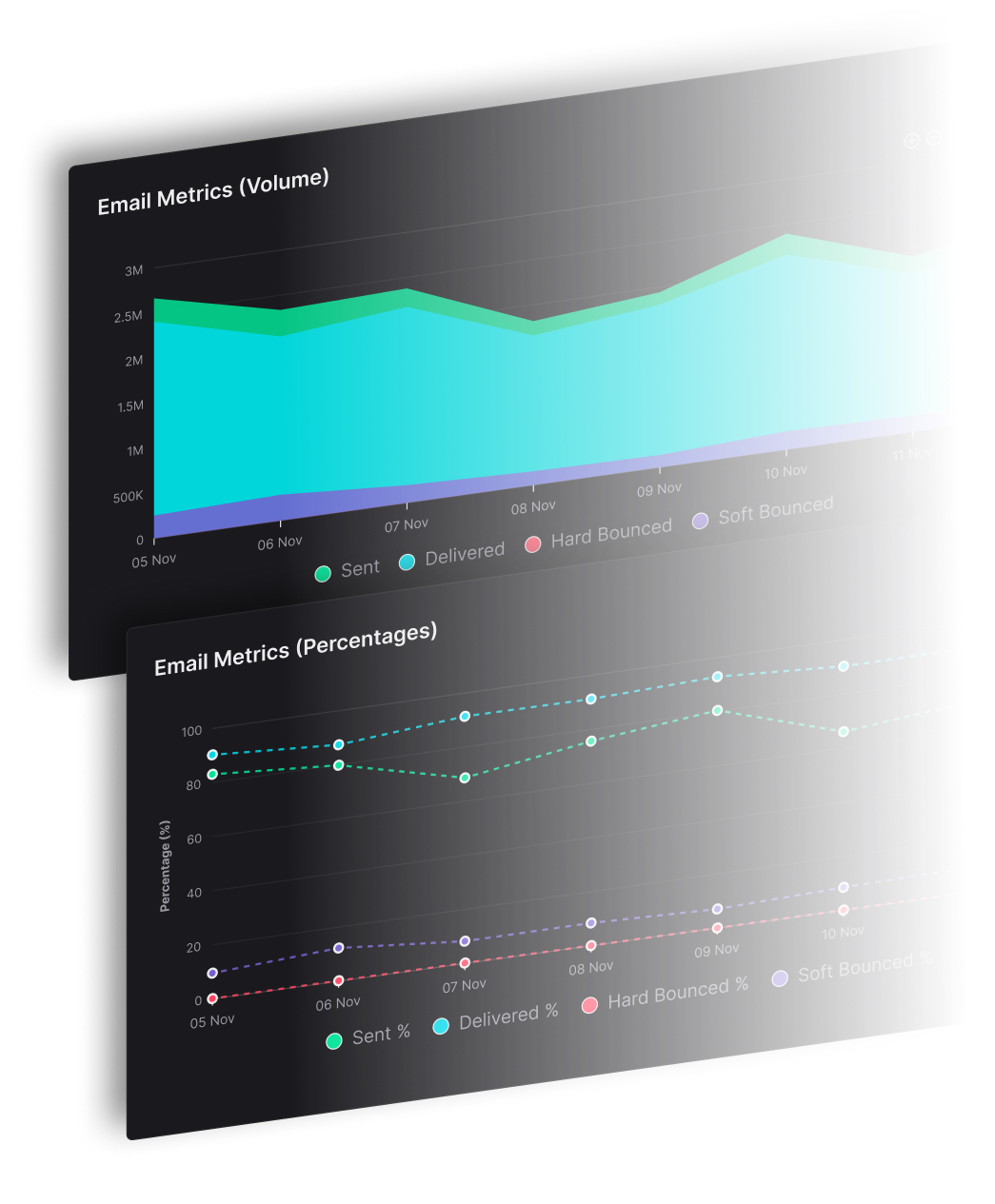
Workflow analytics report per workflow and per email inside it, with timeline and event tracking, so a sequence is not judged on one blended number. The useful question is which step loses people — a delay that is too long, a decision sending most contacts down a path you did not intend, or an email nobody opens before the branch that depends on it.
Start with the enrollment trigger — the event that puts a contact into the workflow. Then drag out what happens next — an email, a delay of minutes, hours or days, a decision that splits the path, an A/B test between two versions, or an exit for people who should stop here. The canvas shows the whole journey at once, so a sequence you built six months ago is still readable.
Workflows stay in draft while you build. Set one active and it starts enrolling contacts; pause it and enrolment stops without losing the workflow or its history; archive it when it has served its purpose. That matters most on automations tied to money — an abandoned-cart or failed-payment flow is one you want to stop quickly if something reads wrong.
Workflow analytics report per workflow and per email inside it, with timeline and event tracking, so a sequence is not judged on one blended number. The useful question is which step loses people — a delay that is too long, a decision sending most contacts down a path you did not intend, or an email nobody opens before the branch that depends on it.
Everything you need to know about SendX and our services. Last updated June 2026.
An email workflow is an automation that decides what a contact receives based on what they do. An event enrols them — a signup, a purchase, a link click — and from there the workflow sends emails, waits, branches on their behaviour, and updates their record. It differs from a plain sequence in that the path is not fixed: two contacts entering the same workflow can end up receiving different emails.
There are 48+ trigger events across 15 providers. Inside SendX: subscribing or being confirmed to a list, a tag added or removed, opening or clicking a campaign, submitting a popup, embedded or landing page form, joining a segment, visiting a page, or a custom event you define. Outside SendX: Shopify cart abandoned and order events, WooCommerce orders, Stripe and PayPal charge events, SamCart orders, Meta lead ads, Intercom users, ConvertBox and Instapage form submissions.
Yes. A decision node can test whether a contact opened or clicked an earlier email in the same workflow, so the people who engaged and the people who ignored it can be sent down different paths. Splits are multiway rather than only yes-or-no, so one decision can fan out to several routes instead of forcing a chain of binary checks.
A drip campaign sends a fixed series of emails on a schedule — everyone gets the same sequence in the same order. A workflow decides as it goes, branching on behaviour and contact data, and it can do things other than send email. Workflows can enrol a contact into a drip as one of their steps, so the two are often used together: the workflow handles the logic, the drip handles a stretch where everyone should get the same thing.
Yes. Action nodes add or remove tags, subscribe or unsubscribe from lists, update a custom field, enrol or remove someone from a drip, and delete a contact. They can also reach outside SendX — call a webhook to any URL, sync to PipeDrive, register a contact for a Demio webinar, send an SMS through Twilio, or push someone into a Meta custom audience.
No. Simple Automations handle single trigger-and-action pairs with an optional delay, using the same trigger types without the canvas. That covers the classic autoresponder — someone joins a list, they get an email. Reach for the visual builder when the path needs to branch, wait at several points, or do more than one thing.
Still have questions? We're here to help.
A/B Split Test is one of five campaign types in SendX. Write two or more subject lines, send them to a slice of your list, and the winner goes out to everyone else automatically. Included on every plan, not held back for a higher tier.
Automatically ramp sending volume to earn a rock‑solid sender reputation—no spreadsheets required.
Write, publish, and track articles without leaving SendX—turn readers into subscribers in minutes.
Filter out security‑scanner noise and see the clicks that actually matter.
Auto‑expire unsent emails so your audience only sees timely, relevant messages.
Give every campaign its own reply‑to address and make sure answers land in the right inbox—every time.
Build it in draft, watch the path before it goes live, and let it run. Free trial, no credit card required.