

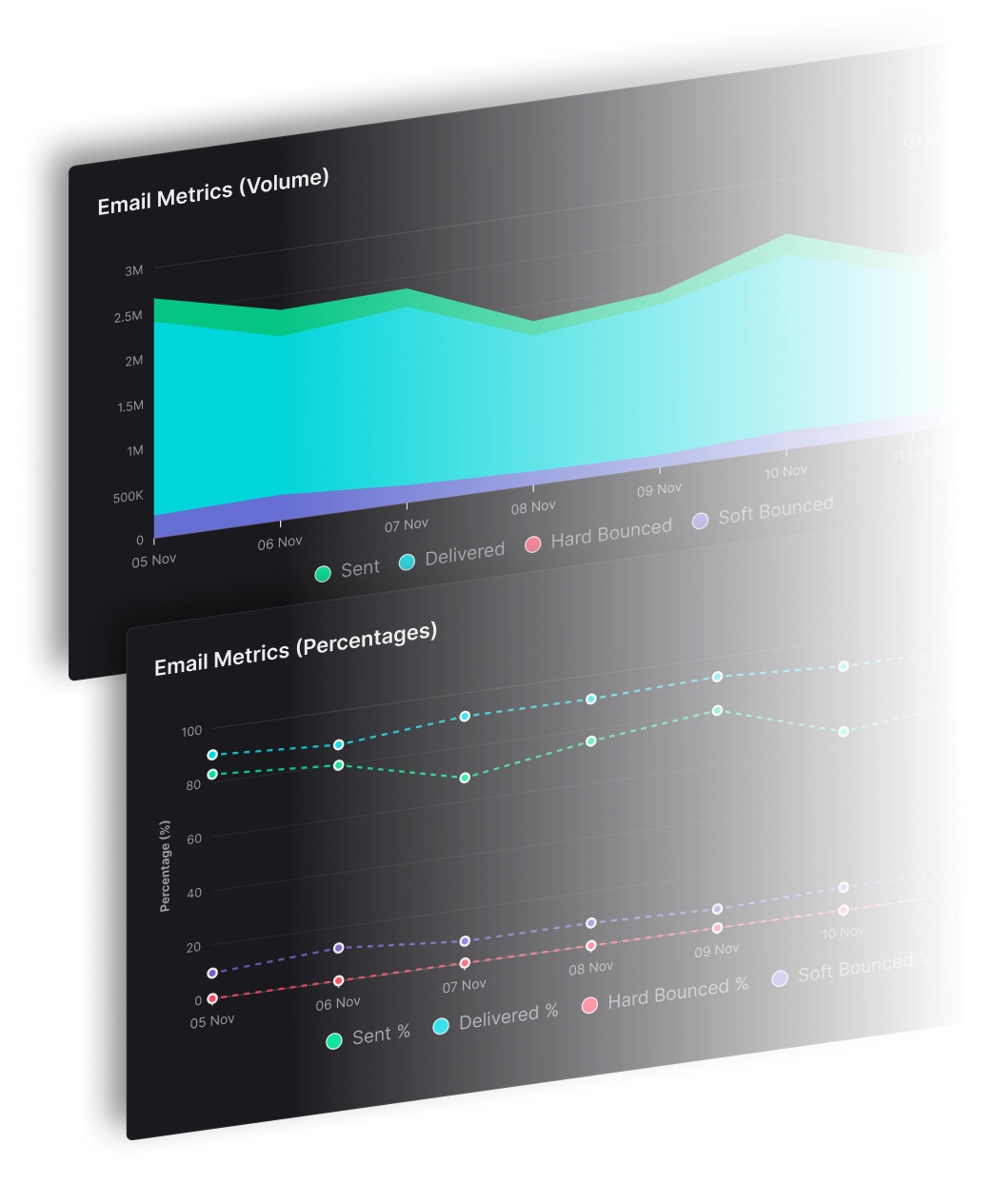


A bounce is a failed delivery that the receiving mail system reports back to the sender. The popular advice to delete every bounced address and move on is wrong, because some bounces describe a bad address and others describe your sending behavior, and deleting the wrong ones removes valid recipients while leaving the underlying problem untouched.
Getting this right for one list is manageable. Across several brands, clients or publications sending at volume, one stream's rejections can spread confusion, and manual checks can't keep up. SendX Infrastructure gives multi-identity senders per-brand bounce reporting and controls, so the failure stays where it started. This guide explains what does it mean when an email bounces, how to read the code, and what to do before your next send.
What an Email Bounce Means for Your Sends
Think of a letter returned by the post office with a slip that says why it couldn't be delivered. A bounce works the same way. The receiving system sends a delivery-status notification, often called a DSN, and Gmail's bounce guidance lists causes including nonexistent addresses, spam or temporary rejection, sending limits, storage exhaustion and recipient-inbox problems.
A bounce tells you only that the mailbox provider did not accept the message. Delivered means the mailbox provider accepted the email. In the inbox means where an accepted message landed. A bounce is therefore never a verdict on inbox placement, because there's no accepted message to place.
Hard bounces and soft bounces
A hard bounce is a permanent failure, for example a nonexistent address or an inactive domain, that resending won't fix. A soft bounce is a temporary failure, for example a full inbox, a server timeout or a rate limit, that may clear on its own. That split decides your next move, which is suppress, retry, or investigate your own setup.
| Bounce type | SMTP code | Typical cause | What the sender does next |
|---|---|---|---|
| Hard | 5.1.1 | Destination mailbox does not exist | Suppress the address |
| Hard | 5.1.2 | Destination domain or mail system is invalid | Suppress the address and check the domain |
| Hard | 5.1.3 | Address syntax is malformed | Correct the typo or remove the address |
| Hard (permanent code) | 5.2.2 | Recipient storage is full | Retry on a limited schedule, then suppress if it repeats |
| Soft | 4.4.1 | Connection timeout | Retry with bounded backoff |
| Soft | 450 | Temporary mailbox unavailable, such as greylisting | Retry later |
| Hard | 550 | Mailbox unavailable, generic reply | Read the diagnostic text before acting |
Sources: Gmail bounce guidance and Microsoft non-delivery documentation linked above and below.
Practical rule: The first digit sets the category, with 4 meaning temporary and 5 meaning permanent.
How to Read a Bounce Notice Step by Step
Start with the DSN in front of you, not the hard or soft label your software assigned. The enhanced status code is the return label, written as class.subject.detail, for example 5.1.1. Microsoft's non-delivery report guide explains that the code is more actionable than a generic undelivered label.
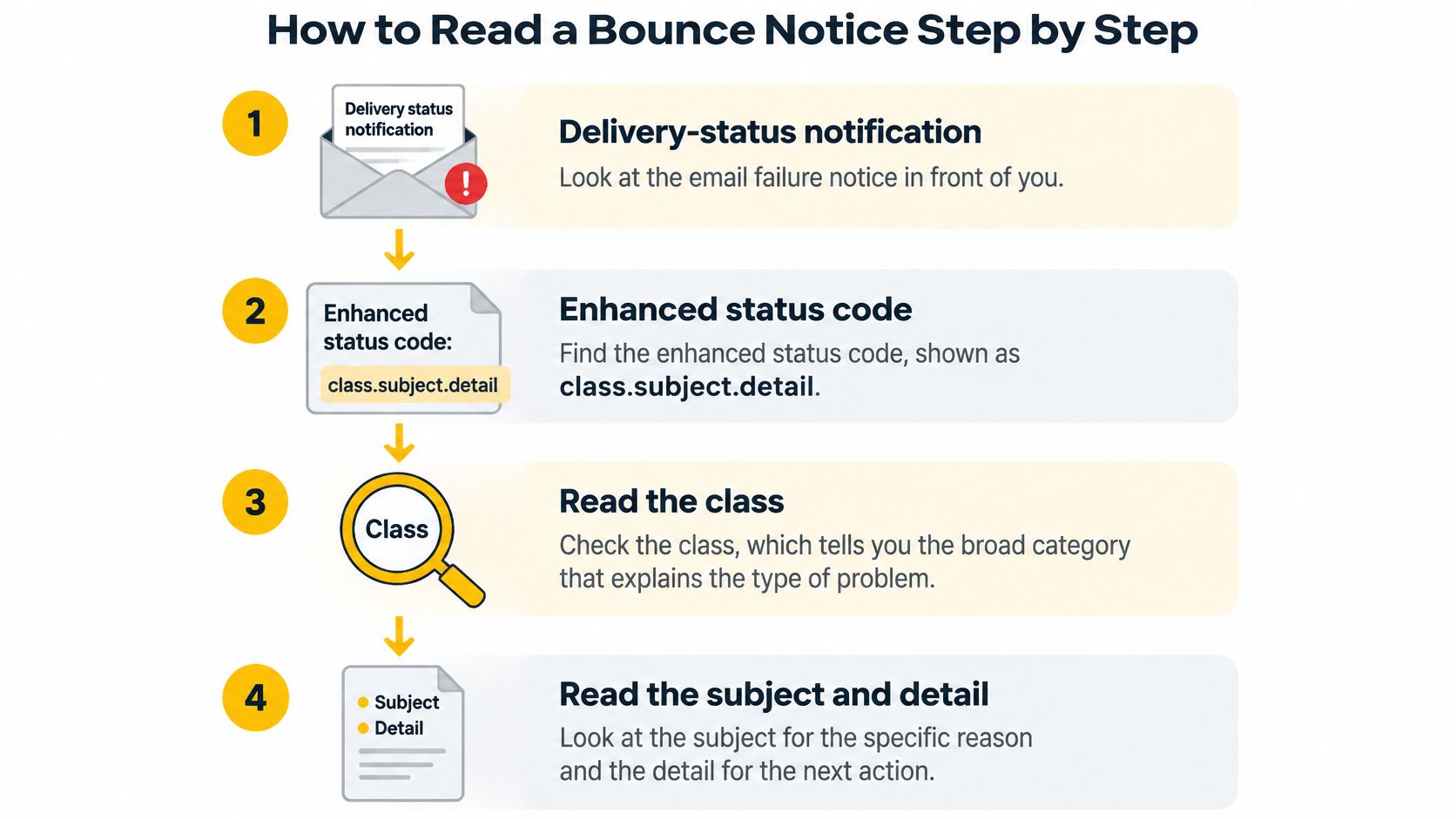
- Find the enhanced code. A bare 550 or 450 is only the SMTP reply and isn't enough on its own.
- Read the first digit. 4 means temporary and may succeed later. 5 means permanent, so sending the same message again won't fix it.
- Read the subject digit. 1 is addressing, 2 is the recipient mailbox, 3 is the destination mail system, 4 is network or routing, 5 is the mail-delivery protocol, and 7 is security or policy.
- Read the diagnostic text. The same 550 can mean a missing mailbox, a policy block or a protocol problem, and the text separates them.
- Record the context. Save the mailbox provider, sending domain, IP and brand with every bounce.
- Store the full DSN. Keep the code and text together so later pattern checks have something to work with.
A 5.1.1 means the destination mailbox doesn't exist, so you suppress the address. A 4.4.1 is a connection timeout that may succeed once the receiving server answers, so you retry with bounded backoff. For reply codes beyond the common set, this breakdown of SMTP errors and response codes covers the wider list.
Why Mailbox Providers Bounce Valid Addresses
A bounce doesn't always mean the address is bad. From the mailbox provider's side, a rejection answers a question about the sender, the message or the recipient, and the address is only 1 of those. Bounce and delivery metrics guidance makes the point that classification can be ambiguous when security filters or sender-policy violations are involved, so the code alone doesn't settle the diagnosis.
Addresses that no longer exist
Typos from sign-up forms, for example gmial.com, closed accounts and abandoned domains all produce genuine address failures. These are the bounces list cleaning fixes.
Filters that reject a real mailbox
Security or policy filtering can return a permanent-looking failure even when the mailbox exists. Deleting that contact punishes a valid recipient for a filter decision, and the diagnostic text usually names the policy.
Limits on how fast you send
A sudden volume jump earns temporary rejections even when every address is valid. To Gmail or Outlook, a sender that appears from nowhere at 10 times yesterday's volume looks like a sender that should be slowed down, not trusted faster.
Sender reputation and authentication
Blocked sending IPs, missing SPF, DKIM or DMARC records, and compliance or routing policies can all trigger rejections. This guide to email sender reputation explains how providers build that judgment. When acceptance looks inconsistent after authentication checks pass, a MailGenius inbox placement test helps confirm where accepted mail lands.
Mailbox full or storage exhausted
A full recipient mailbox is a recipient-side limit you can't fix. You wait, retry on a limited schedule, and stop if it repeats.
A steady, clean sending pattern signals an ordinary sender that's easy to accept, which is exactly what mailbox providers reward.
What a Good Bounce Rate Looks Like
A low bounce rate is useful, but the average alone can hide a failing sending stream. As a practical target, keep the rate below 0.5%. Bounce rate is the share of sent messages that mailbox providers reject, and its meaning depends on where and why those failures occur.
| Bounce rate | Failed deliveries per 100,000 sends | Benchmark context |
|---|---|---|
| 0.18% | 180 | Retail benchmark |
| 0.22% | 220 | Professional services benchmark |
| Below 0.5% | Under 500 | Rate to aim for |
At 100,000 sends, the difference between 0.18% and 0.5% is 320 failed deliveries. Small percentages add up quickly at volume. Use email bounce rate benchmarks by industry and send type as context, not as a diagnosis: a benchmark cannot show whether failures cluster around one address, one mailbox provider, or one brand's sending stream.
A blended rate can conceal those differences. Break results down by domain, campaign, mailbox provider, and failure reason. If one brand's stream rises while others stay steady, the problem may be isolated to that identity. If failures rise across providers and streams at once, inspect the shared sending pattern.
Compare like with like: the same send type, time window, and failure categories.
A sudden jump after an import can point to an address-quality issue. A rise concentrated at one mailbox provider may signal that provider is rejecting or slowing a particular stream. The next step is to trace the pattern, not treat every bounce as the same failure.
How to Tell a Bad Address From a Sending Problem
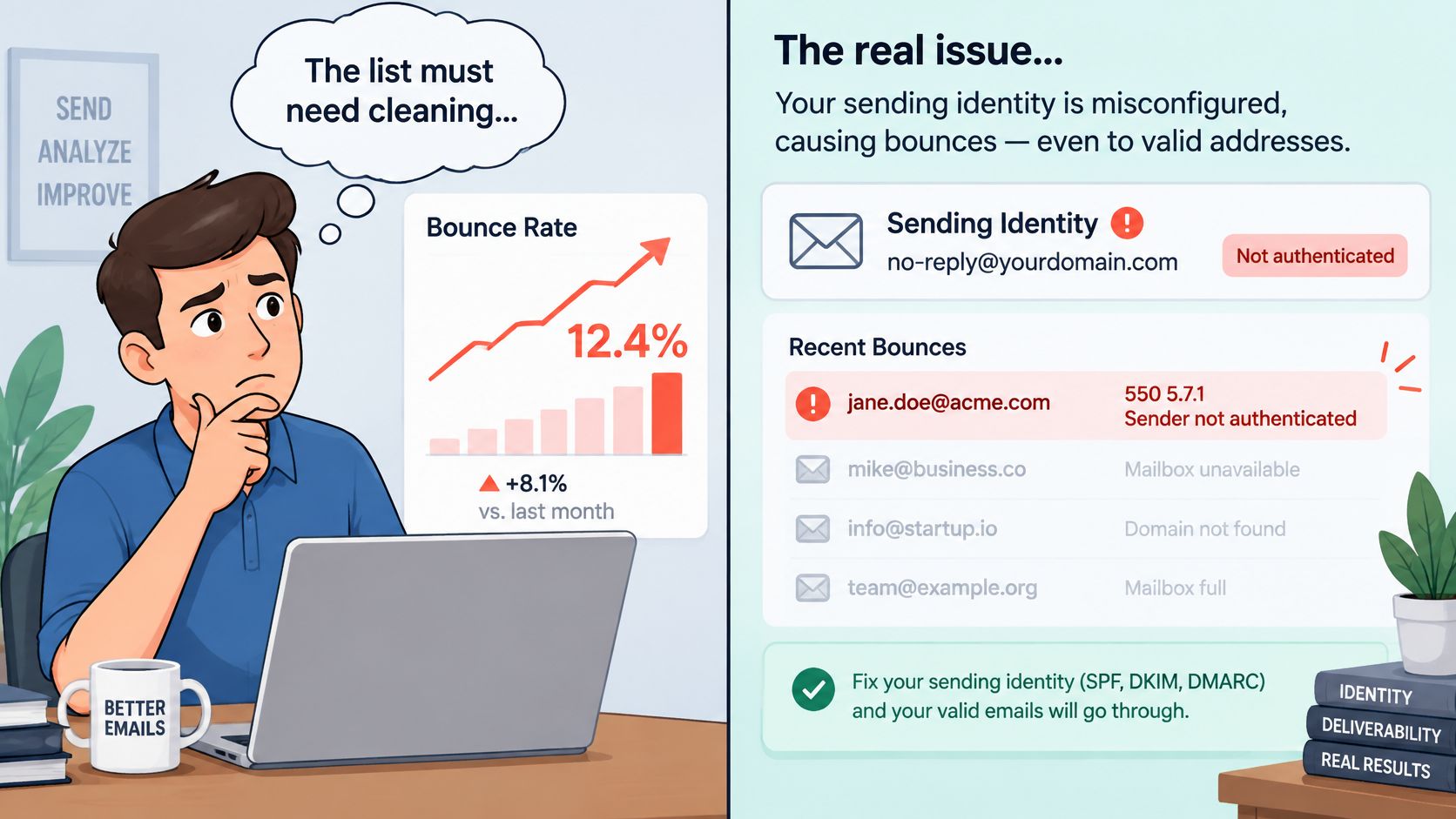
The common belief says a rising bounce rate means the list needs cleaning. Sometimes it does. But the rate is also an early signal about your sending identity, and guidance on hard and soft bounce differences notes that strict security filtering can produce a permanent-looking failure even when the mailbox exists. The question to answer is whether you have 1 bad address, 1 unhappy mailbox provider, or 1 troubled sending stream.
| Signal | One bad address | Systemic sending problem |
|---|---|---|
| Bounce codes | A few 5.1.1 responses for specific addresses | The same 5.x.x or 4.x.x pattern on many addresses |
| Mailbox providers | One address at one provider | The same code at several mailbox providers at once |
| Timing | Tied to one list import or one old segment | Rises after a volume jump, a new IP or a new sending pattern |
| Scope | One domain or one recipient | One brand, one IP or one sending stream |
To run the test, segment bounces by mailbox provider, sending domain, SMTP code and time window. A spike right after a list import points to the list. A spike at 1 mailbox provider across many lists points to reputation or throttling, and that's when you check why email authentication fails before touching the list again.
With several brands, run the same check per brand. If the spike stays inside 1 brand's domain and IP, the problem belongs to that brand. If it appears across brands sharing 1 IP, the problem sits in the shared infrastructure, and no amount of list cleaning in 1 brand will fix it.
What to Do With Hard and Soft Bounces
A bounce is a signal from the receiving mail server about what it will accept next. Gmail's sender guidelines advise monitoring SMTP errors, reducing volume when messages begin bouncing or being deferred, and increasing gradually after the error rate falls. Gmail also recommends keeping user-reported spam below 0.1% and preventing it from reaching 0.3% or higher, so manage complaints alongside bounces.
- Suppress permanent failures promptly. A 5.1.1 response usually means the recipient address does not exist. Remove it from future sends so it cannot generate more failures.
- Retry temporary failures with bounded backoff. Follow the receiving provider's response, limit attempts, and leave time between retries. A temporary error can become a repeated signal if your system keeps resending too quickly.
- Pause or throttle the affected segment. If one stream is receiving failures, contain the slowdown to that domain, IP, or brand rather than stopping unrelated sends.
- Reduce volume when deferrals begin. A deferral means the provider is asking you to slow down or try again later. Aggressive retries can add pressure while the provider is already limiting acceptance.
- Check before resuming. Review authentication, content, complaint rates, and recent volume changes, then restart gradually.
- Reach valid recipients another way. If an address is valid but continues to reject your email, use another channel to contact the recipient instead of repeatedly resending.
Before retrying, use a tool for cleaning prospect lists to catch malformed addresses that would fail again. For ongoing suppression and list hygiene, follow this guide to email list cleaning.
Choose Bounce Handling That Holds Up at Volume
At volume, a bounce pattern needs to be tied to the stream that produced it. A rise in one mailbox provider's rejections calls for a different response than a rise across providers, since the first may point to provider-specific throttling while the second can signal a broader sending or list-quality issue.
SendX's deliverability analytics track bounce rates, delivery rates, spam complaints and inbox placement by mailbox provider, with benchmark comparisons. Its sender-reputation monitoring surfaces blocklist events, complaint spikes and bounce anomalies, helping teams identify where a change is needed. The Managed Deliverability Service also includes intelligent throttling and backoff, which adjusts sending speeds automatically to support deliverability and manage bounce rates.
For organizations sending under multiple brands, clients or publications, SendX is built for 25,000 contacts and up. Each sending identity can be managed separately, and the infrastructure supports a gradual move: route one brand through SendX while the current provider continues underneath, then assess the results before moving another. Its managed sending tools include per-provider warmup and throttling across 27 providers.
FAQs
Does one bounce hurt your reputation with Gmail?
One failed address doesn't mark your sending domain, because mailbox providers act on patterns, not single events. A single 5.1.1 from a typo is list hygiene. What draws attention is many permanent failures, retries that keep hitting the same rejection, or a spike after a sudden jump in volume, since that pattern signals a sender that's hard to accept.
How many soft bounces should you allow before you suppress the address?
Provider documentation doesn't publish 1 universal count, so you set a small fixed limit and enforce it. Retry a 4.x.x failure a few times with backoff, then suppress the address if the same code returns on later sends. Suppress a confirmed 5.1.1 or 5.1.2 on the first failure. Treat 5.2.2 as the exception, retry it on a limited schedule, and suppress it if the storage error repeats.
Is a bounce the same as the spam folder?
No, because the spam folder only applies to mail that was accepted. A bounced message was never accepted, so there's no placement to judge and nothing for a spam filter verdict to describe.
Route your highest-volume brand through SendX Infrastructure and see its bounces per mailbox provider, per IP and down to the code on the next send, with your current provider still running underneath. Visit SendX to set up the first brand and prove the numbers before you move another one.
Drafted with the Outrank app
