Build a standalone page in SendX, pick which list it fills, and the people who sign up are ready to segment and send to straight away. No separate landing page tool, no integration to keep alive between the two.

Plenty of tools will give you a good-looking page. The difference is whether a signup lands somewhere useful, or in an export you have to move by hand.
Every template is mobile-responsive, so a page you build on a laptop still works for the half of your traffic arriving on a phone. Preview desktop and mobile side by side as you go. If none of them fit, start blank and build it yourself — saved row blocks let you keep the sections you have already made and drop them into the next page.
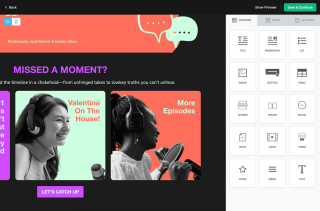
Drag in titles, paragraphs, images, buttons, tables, dividers, video, social links and menus. The one that matters most is the form block — it puts the signup directly on the page rather than embedding something from elsewhere. There is an HTML block too, plus custom CSS and JavaScript, for the parts a builder cannot reach.
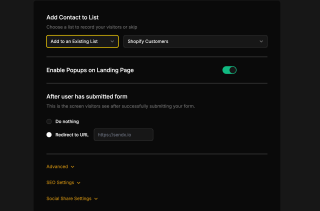
Choose the list new contacts are added to, or skip it if the page is not collecting. Set what happens after someone submits — leave them on the page or send them to a URL of yours. SEO and social share settings live on the same screen, so the page has its own title, description and share card without a developer. Submissions are recorded against the page URL, which is what lets you tell later which page a contact actually came from.
The second step is the one that makes it part of your email marketing rather than a page on its own.
Pick a template or start blank, then work in the builder — content blocks on one tab, row layouts on another, page settings on a third. Drop in a form block wherever the signup belongs. Switch between desktop and mobile as you go rather than discovering the difference after publishing, and preview the whole thing before you commit.
Point the page at an existing list so signups arrive somewhere you already send from, or skip that if the page is not collecting anything. Decide what visitors see after they submit — nothing, or a redirect to a URL you set. Open SEO settings and social share settings on the same screen to give the page its own search title, description and share card.
Pick a template or start blank, then work in the builder — content blocks on one tab, row layouts on another, page settings on a third. Drop in a form block wherever the signup belongs. Switch between desktop and mobile as you go rather than discovering the difference after publishing, and preview the whole thing before you commit.
Point the page at an existing list so signups arrive somewhere you already send from, or skip that if the page is not collecting anything. Decide what visitors see after they submit — nothing, or a redirect to a URL you set. Open SEO settings and social share settings on the same screen to give the page its own search title, description and share card.
Everything you need to know about SendX and our services. Last updated June 2026.
No. A SendX landing page is standalone and hosted for you on a global CDN, so it works whether or not you have a site of your own. That makes it a reasonable destination for an ad, a social post, a QR code or an email link when you do not want to build or change a website first.
They go into the list you chose when you set the page up, as a contact in the same account you send campaigns from. From there they can be segmented, enrolled into a drip or picked up by a workflow like any other contact. You can also skip the list entirely if the page is not collecting signups. The submission is recorded against the page URL, so you can tell later which page brought someone in.
Either nothing, or a page of your choosing. The setting has two options — do nothing, which leaves them where they are, or redirect to a URL you enter. If you want a proper thank-you page with its own content, build it as a second landing page and redirect to that.
Yes. Each page has its own SEO settings — page title, description and keywords — and its own social share settings for the title and description that appear when the link is posted. Both sit in the page settings alongside the list and redirect options, so you are not filing a ticket to change a meta description.
Each page reports its own views, submissions and conversion rate, so two pages running against the same campaign are measured separately rather than rolled into one number. That is usually enough to tell whether a page has a traffic problem or a page problem — plenty of views and few submissions is a different fix from almost no views at all.
Yes. There is an HTML block you can drop into the page like any other block, and custom CSS and JavaScript for changes the builder does not cover — a tracking pixel, a font, a third-party widget. Most pages never need it, but it is there when a template gets you most of the way and not all of it.
An embedded form sits inside a page you already have, using one snippet on your own site. A landing page is the whole page, hosted by SendX, with no navigation to click away to. Use an embedded form to collect signups from traffic already visiting your site, and a landing page when you are sending traffic somewhere specific and want nothing else competing for the click.
Still have questions? We're here to help.
A/B Split Test is one of five campaign types in SendX. Write two or more subject lines, send them to a slice of your list, and the winner goes out to everyone else automatically. Included on every plan, not held back for a higher tier.
Automatically ramp sending volume to earn a rock‑solid sender reputation—no spreadsheets required.
Write, publish, and track articles without leaving SendX—turn readers into subscribers in minutes.
Filter out security‑scanner noise and see the clicks that actually matter.
Auto‑expire unsent emails so your audience only sees timely, relevant messages.
Give every campaign its own reply‑to address and make sure answers land in the right inbox—every time.
Start from a template, point it at a list, and send traffic to it. Free trial, no credit card required.